
FAQ

Using a monitor arm offers several practical advantages over a traditional monitor stand:
- Improved ergonomics– Adjust your screen to eye level to reduce neck and shoulder strain.
- Greater flexibility– Tilt, swivel, rotate, or move your monitor freely to match your workflow.
- Cleaner workspace– Free up valuable desk space and hide cables for a neater look.
- Enhanced productivity– Set up dual monitors or a customized layout to improve multitasking.
- Check the VESA patternon the back of your monitor to make sure it matches the arm’s supported mounting standards.
- Check the weight of your monitorand ensure it falls within the monitor arm’s weight capacity.
- Check the screen sizeto confirm that the arm is designed to support your monitor’s dimensions. Our monitor arms fit a large range of screen sizes from 17″ up to even 49″.
VESA (Video Electronics Standards Association) mounting standards refer to the hole pattern on the back of a monitor.
How to Check:
- Look for four screw holes arranged in a square.
- Measure the spacing—most common patterns are 75mm x 75mm or 100mm x 100mm.
- Check the user manual or spec sheet for “VESA compatible” mention.

If your monitor doesn’t have VESA holes, you can use a VESA adapter plate designed for your monitor model. These adapters allow you to mount your monitor to a VESA-compatible arm or stand.
Single Monitor Arm: Ideal for minimal setups, focused tasks, or limited desk space.
Dual Monitor Arm: Supports two monitors side by side—popular with professionals who multitask.
Multi Monitor Arm: Some arms support up to 3 or 4 monitors for trading desks, design studios, or dev teams.

Our monitor arms typically include a clamp or grommet mount, and some models offer both installation options for added flexibility.
- Standard ClampMount: easy to install and remove without drilling, ideal for desks with accessible edges.
- Topside ClampMount: Tool-free installation from above the desk surface—no need to crawl under the desk.
- Grommet Mount: Provides a cleaner, more permanent setup by securing through a desk hole.
some models also support wall mounting—a great choice for saving desk space or when mounting directly to the wall is preferred.

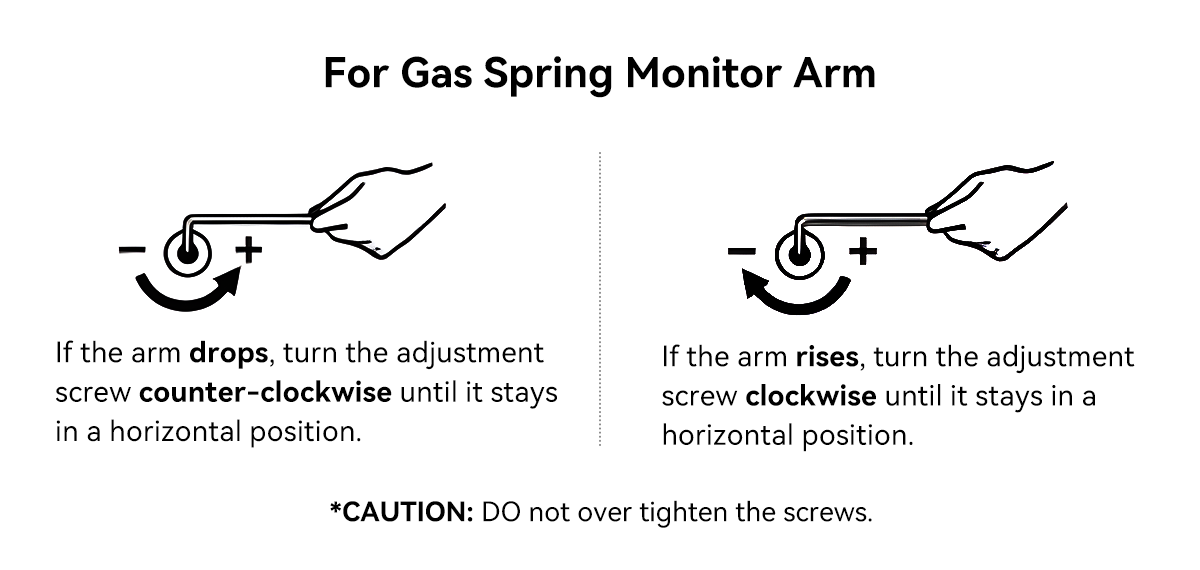
- Gas-Spring Arms:use internal pressure for effortless movement, ideal for frequent adjustments.
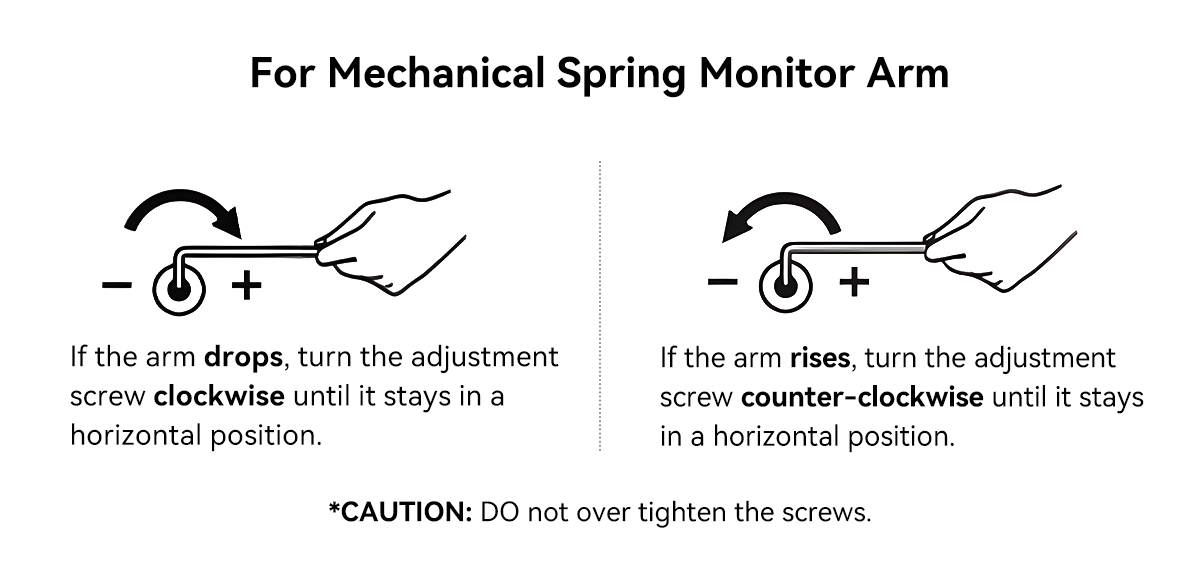
- Mechanical Spring Arms: rely on friction or spring tension, often more budget-friendly while still providing smooth movement.

Yes, as long as the monitor is within the weight and size limits. Look for heavy-duty arms or models designed specifically for ultrawide screens.
Most monitor arms can be mounted on desks with:
- A solid surface (wood, metal, etc.).
- A thickness of 0.4” to 3” (depending on the clamp model).
- A stable edge for clamp mounting, or a grommet hole for center mounting.
Avoid using monitor arms on glass desks unless you use a proper reinforcement plate or have manufacturer assurance.
Absolutely. Monitor arms work well with both sitting and standing desk setups, allowing you to reposition the monitor as your desk height changes. Just ensure the arm has a wide vertical adjustment range to accommodate your full range of movement.
Most monitor arms offer the following adjustment features:
Tilt: Angle screen up/down to reduce glare.
Swivel: Turn left/right (often up to 180°).
Rotation: Switch between landscape and portrait modes.
Height Adjustment: Raise or lower to eye level

Yes, quality monitor arms are designed for regular adjustments. Make sure the tension settings are correct for your monitor’s weight.
Most monitor arms come with built-in cable management systems, such as clips, covers, or sleeves along the arm structure. These help route and conceal power and video cables, reducing desk clutter and minimizing the risk of tangling or accidental disconnection.
- Check weight limits: Make sure your monitor is within the arm’s specified load range.
- Monitor arm will move if the spring tension is not suitable. Firmly hold the arm horizontally as shown and position the arm. Adjust tension screwusing the supplied Allen Key as follows:

If you’re unable to move the monitor arm smoothly, it may be due to over-tightened components.
- DO NOT overtighten the tension screw, or the monitor arm may not move.
- DO NOT overtighten the screws behind the VESA plate, or you can’t move your screens.
- Make sure the desk mount is securely fixed. If using a clamp mount, ensure it’s tightly attached to the desk edge.
- Check for any worn-out or damaged parts, such as joints or screws, and replace them if necessary.
If your monitor droops or tilts, it may indicate that the tension settings are too loose or the arm is not designed to support the monitor’s weight. Retighten the spring tension (as described in Q14) to increase the tension and support the weight of the monitor.·
- Adjust the screws behind each VESA plate to fine-tune the height.
- Reposition each monitor until both are aligned horizontally.
- Ensure both arms have identical tension settings for consistent positioning.